
How to Create a Custom QR Code with Your Logo (That Still Scans)
A logo in the middle is fine. Covering a finder square, going light-grey on cream, or quoting “30% logo coverage” as gospel is how print jobs bounce back.
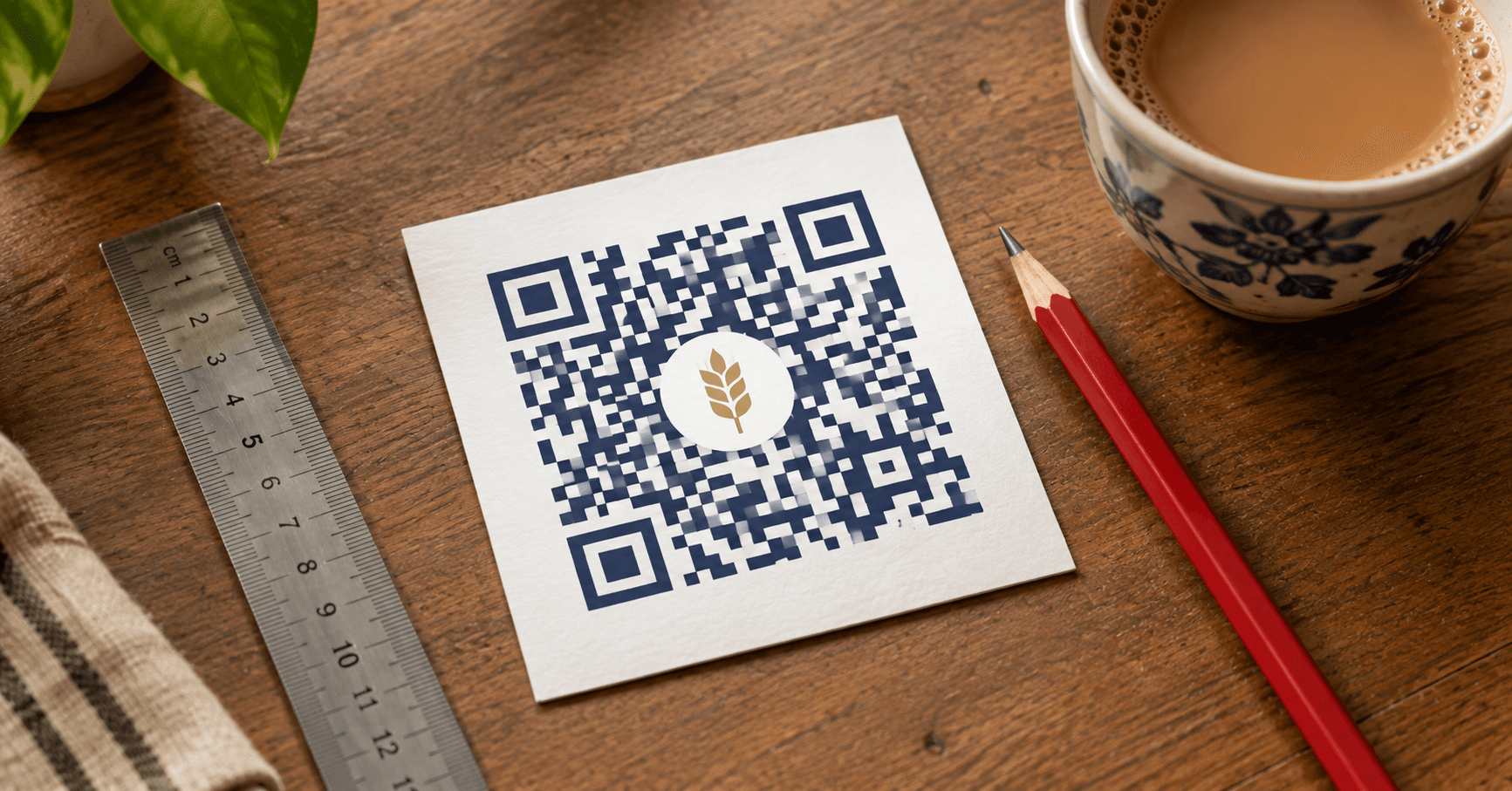

QR Junction Team
We build QR tools that restaurants actually print and use.
A baker in Jaipur sent us a gold QR on a kraft sleeve. Looked expensive. Did not scan unless you stood under the tube light and held your breath. The logo was huge, the modules were the same brown as the paper, and error correction was left on M because the generator defaulted there.
A custom QR code is still a machine-readable grid. You can colour it, round the dots, drop a mark in the centre. You cannot negotiate with the three big squares in the corners. Those are finder patterns. Cover one and a lot of cameras shrug.
Here is how to make a QR code with a logo that survives a real print, using the free designer on QR Junction.
What you can decorate, and what you cannot
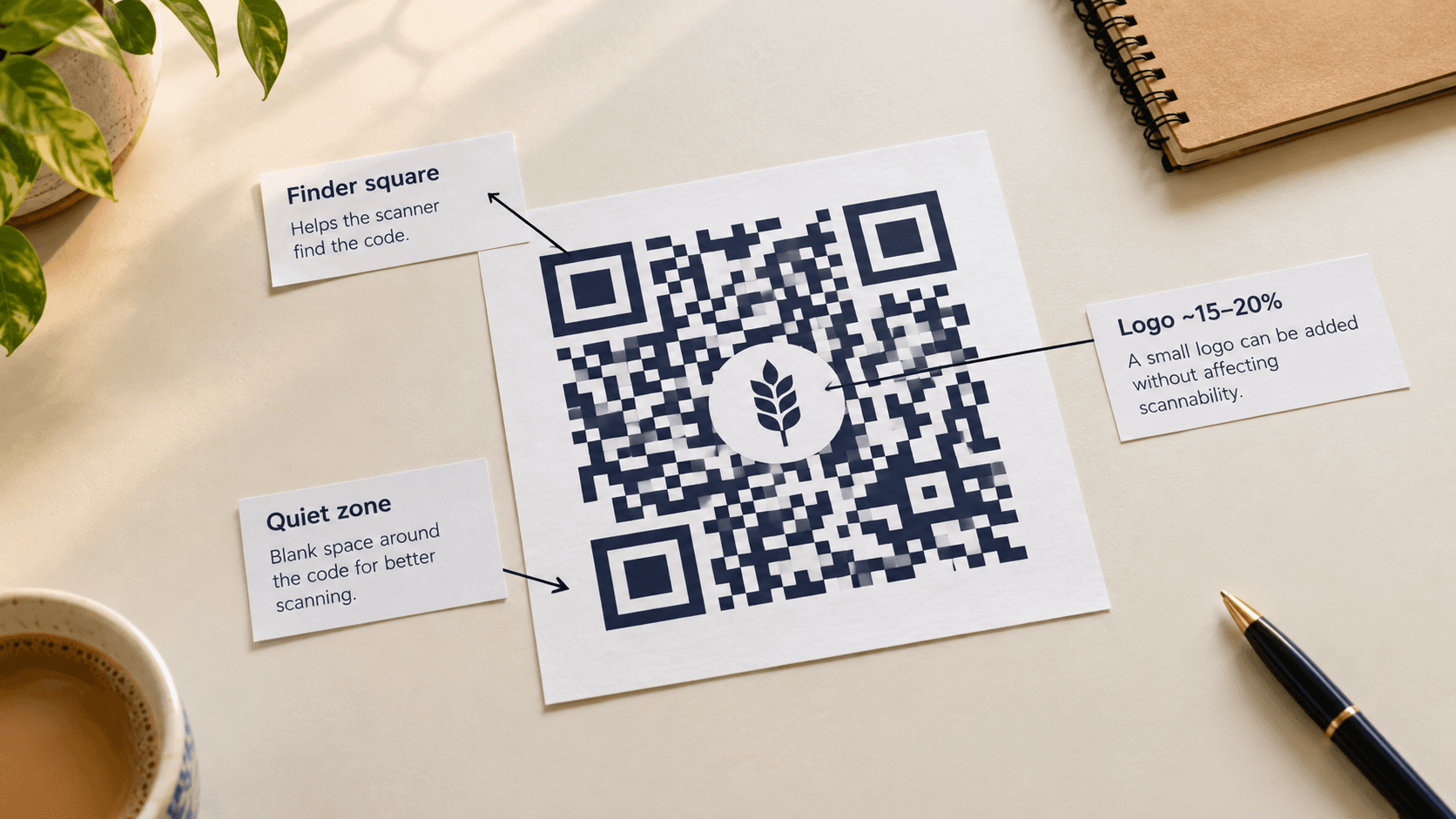
The three finder squares tell the camera where the code starts, even if you hold the phone crooked. Leave them dark, complete, and high-contrast. Corner dots inside them can change shape a little. Do not hide them under the brand mark.
The quiet zone is the empty margin. Crop it in Figma to “make the code bigger” and you steal the thing scanners use to lock on. Keep at least four modules of clear space.
The centre is the only comfortable place for a logo, and only because error correction can rebuild missing modules. That is also why the internet’s favourite line — “logos can cover 30%” — is sloppy. 30% is a figure for scattered damage at level H, not a solid sticker parked in the middle.
Logo size vs error correction
Set error correction to H before you upload anything. Level L is for clean industrial codes with no logo. M is a default. Q and H are what branded codes need.
Keep the logo around 15–20% of the full square, with a little white padding so dark modules do not collide with dark artwork. If the mark is a detailed illustration, simplify it. A wordmark at 8 pt inside a QR is ego, not branding.
Hide background dots behind the logo if your generator offers it. That punches a clean hole instead of speckles showing through the PNG. Then scan. If it fails, shrink the logo. Do not crank contrast on the photo of the logo and hope.
Colour, gradients, and inverted codes
Dark modules, light background. That is the whole colour theory. Deep navy on white is safer than brand yellow on cream. Gradients on the dots look nice in a Dribbble shot and muddy the edges cameras need.
Light modules on a dark background (inverted) fail on a surprising number of cheap Androids. If the campaign is black-on-black luxury, put the QR on a white sticker inside the dark design. Do not invert the code to match the poster and pray.
Frames around the code — “Scan for menu”, “WiFi”, a coloured border — help humans more than machines. They also steal quiet zone if you draw them tight. Keep the frame outside the margin, not on top of it.
SVG vs PNG vs JPEG for a branded QR code
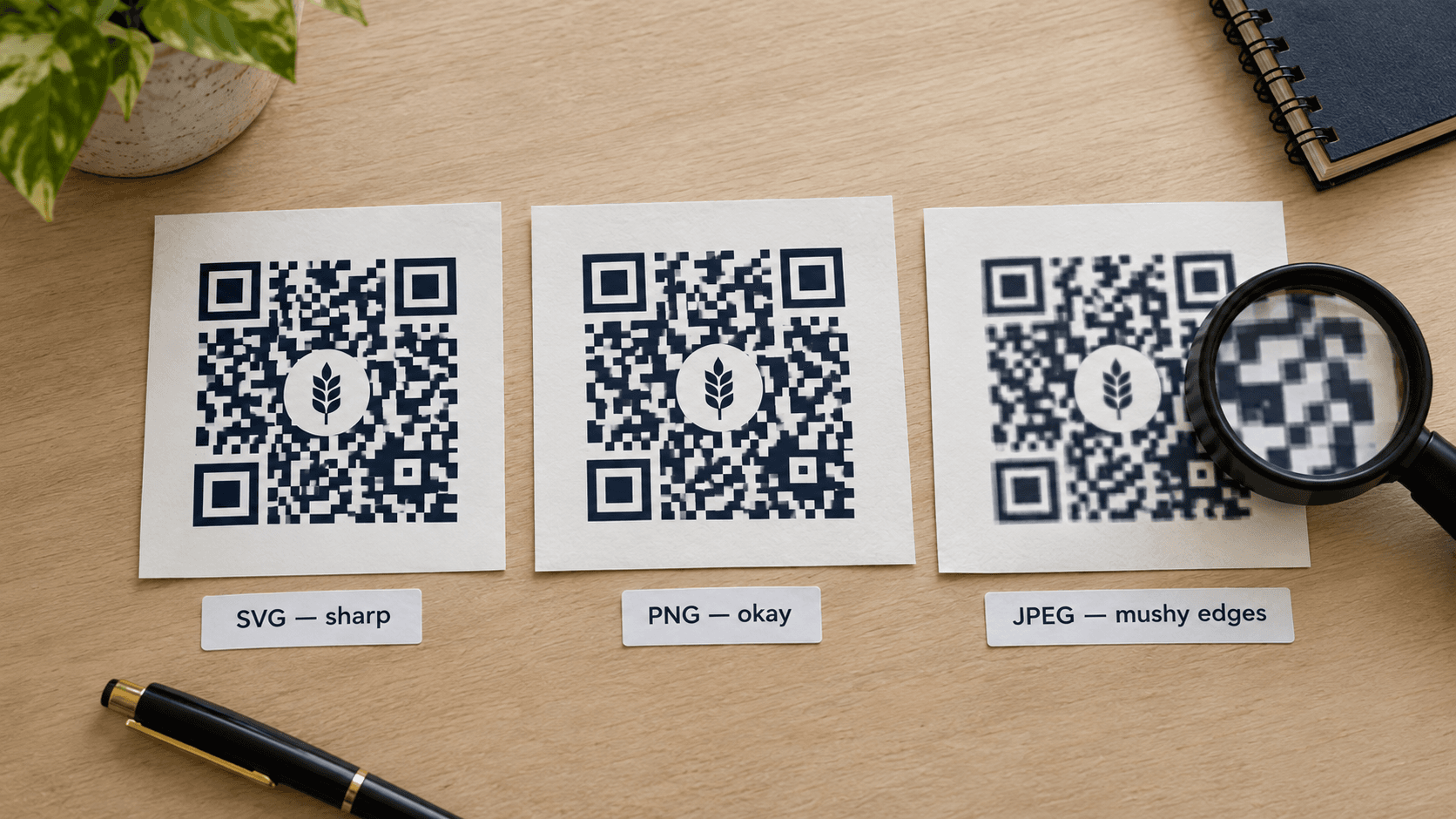
SVG is a vector. The squares stay sharp from a visiting card to a 6-foot standee. Send SVG to anyone doing offset or large-format work.
PNG is a bitmap. Use it for Instagram, WhatsApp, slides. Export large (at least 1000 px, 2× or 3× if the tool allows) so nobody upscales a 300 px file in Canva.
JPEG is a last resort. It adds compression artefacts on the module edges. Do not give a printer a JPEG QR and then ask why it “sometimes” scans.
| File | Use it for | Avoid |
|---|---|---|
| SVG | Print, signage, packaging dies | Email clients that strip SVG |
| PNG | Screens, stories, web | Blowing up a tiny PNG for a hoarding |
| JPEG | Almost nothing QR-related | Any print file |
The test that saves a reprint
Generate the custom QR on qrjunction.in/qr. Print one copy at the final size on the final stock. Then:
- Scan with an iPhone camera at 30 cm.
- Scan with an Android at about a metre, if that is the real distance.
- Dim the lights. Glossy cards fail here.
- Cover a corner of the logo with your thumb. If the code dies, the logo is too hungry.
- Try a slightly dirty camera lens. Guests have those.
Brand it, but keep it editable
A beautiful static code on 2,000 sleeves is still a brick if the URL changes. For packaging and visiting cards, generate a dynamic QR, then style it. The logo sits on a code you can retarget later.
The designer on the public /qr page is the full styling playground (dots, corners, frames, logo). Dashboard codes start simpler and pick up frames in the design modal. Either way, test the downloaded file, not only the on-screen preview.
Pretty is a constraint, not the goal
If the scan takes two tries, the logo lost. Shrink it, darken the modules, export SVG, print one, scan it in the worst light you have. Then print the rest.
That is a custom QR code with a logo. Everything else is decoration.
Frequently asked questions
Does a logo break a QR code?
It can, if it is large, low-contrast, or sitting on a finder square. With error correction H and a small centre mark, most cameras still read the code. Always scan a printed proof.
What error correction should I use with a logo?
H. Lower levels do not leave enough spare data once you punch a hole in the middle.
Can I use a transparent background?
Yes for digital placements on a light layout. On print, transparent on dark paper is an inverted-code problem. Put a white plate behind the code.
What DPI should a QR code be for print?
Do not think in DPI for vectors — send SVG. If you must send PNG, export at the physical size at 300 DPI (a 4 cm code is roughly 470 px at 300 DPI; go larger).
Can I use my brand colour instead of black?
Yes if the modules stay clearly darker than the background. Navy, maroon, charcoal work. Pastel on pastel does not.
Should I add a frame around a branded QR code?
A frame with a short instruction (“Scan for WiFi”) helps people. Keep it outside the quiet zone so you do not clip the code.
Related guides
How to Make a WiFi QR Code So Guests Connect Without Asking
The password is inside the square. Their phone asks “Join Cafe-Guest?” and you stop spelling WPA keys across the counter.
QR Codes for Business Cards: The Complete Guide
The card is the handshake. The QR is the save-to-phone. Link it at something useful — vCard, LinkedIn, WhatsApp — and make it dynamic so a job change does not kill 200 prints.
Static vs Dynamic QR Codes: Which One Do You Actually Need?
They look identical on paper. One dies when the URL changes. The other you can edit — and count. Pick before you print 500 flyers.
Design a custom QR code with your logo
Create custom vector patterns, integrate dynamic redirection endpoints, and view details.